Designing an app interface with AI: research, screens, prototype, code
7 stages, 29 tools
updated
Type a sentence, get five app screens. That part of interface design is now trivially easy, and it is also the least valuable part. A generated dashboard looks finished within a minute and tells you nothing about whether people can complete the task it was drawn for.
Where AI helps in a working design process is in lowering the cost of being wrong. You can map a flow, wireframe three alternative structures, turn the chosen one into realistic screens and have a clickable prototype in front of a user the same afternoon, then throw it away without regret when the test goes badly. Reference libraries, survey tools and interview transcription shorten the research on either side of that loop.
The decisions stay with the designer: what the product should not do, which of the three structures matches how users think, what happens in the empty, loading and error states that generators usually skip, and whether the result is usable by people with different abilities and devices. Treat generated screens as fast sketches to argue with, never as the specification.
Who this is for Product designers, founders and product managers without a design team, and developers who need to take an app idea from rough flow to tested screens and want to know which tool helps at which point.
These picks form the shortest loop from question to tested idea: ask users, map the flow, generate screens, make them clickable. They are a route to try on a small project first, not a ranking.
Build a clickable version of the single core flow and watch two people try it without help.
1
Stage 1: User research and references
Before drawing, you learn who the users are, what they are trying to get done and where they struggle today, through interviews and surveys, and you study how existing products solve similar problems.
What AI does here
Draft surveys, run and transcribe interviews, group notes into themes and find real product screens that match a pattern you describe.
What AI can’t do here
Observe what people do instead of what they say. Summaries flatten the hesitations and workarounds that matter most, so read the raw transcripts for your key interviews.
A searchable library of real web and iOS product screens and user flows, such as onboarding, with a research mode that returns references and analysis.
Searchable library of real web and iOS product screens and user flows, with an AI research mode, Figma plugin and MCP.
Gathers research outputs on one shared board where its AI groups sticky notes into themes and writes summaries.
Shared visual canvas for diagrams, whiteboards and planning, with AI generation, workflows and an MCP server.
View tool
2
Stage 2: Flows and wireframes
You map the journey: which screens exist, what decision or action each one holds, and how users move between them. Low-fidelity wireframes fix structure and hierarchy before any styling.
What AI does here
Turn a described process into a flowchart, generate editable wireframes for every screen in a journey, and digitize a hand-drawn sketch.
What AI can’t do here
Know your product's real constraints. A generated flow assumes the happy path and leaves out permissions, edge cases and the steps your backend cannot support.
Builds wireframes from a text description, a screenshot or a flow diagram, aimed at people without design training.
AI-assisted UI design tool for creating wireframes, mockups and prototypes from prompts, screenshots or templates.
View tool
3
Stage 3: UI screens
Wireframes become high-fidelity screens: typography, color, spacing, components and states defined consistently, ideally as a small design system so every new screen is built from the same parts.
What AI does here
Generate polished multi-screen designs from a prompt or reference, offer several visual directions at once and apply an imported design system.
What AI can’t do here
Give your product a point of view. Output gravitates to the same familiar look, and empty, error and loading states, long text and real data are usually missing.
A collaborative interface design tool with auto layout, responsive containers and shared components that generates prototypes from text or images, used particularly by teams in China.
Collaborative online interface design platform with AI prototype generation and design-to-code handoff.
View tool
4
Stage 4: Icons and illustrations
The interface needs its small graphics: a coherent icon set, an app icon, spot illustrations for onboarding and empty states, and backgrounds, all in one style and delivered as scalable files.
What AI does here
Generate families of icons and illustrations in one consistent style, export them as editable vectors and trace an existing bitmap into SVG.
What AI can’t do here
Guarantee legibility at small sizes. Generated icons often carry too much detail for a 24-pixel grid and need simplifying and aligning by hand.
A library of grainy, smooth and animated gradient backgrounds for app screens, with a shader tool for building a custom gradient.
Library of grainy, smooth and animated gradients plus AI-generated backgrounds, with a real-time shader tool.
View tool
5
Stage 5: Interactive prototype
Screens are linked into something a person can tap through. Depending on the question, that is a click-through of static screens or a small working app with real inputs and data.
What AI does here
Connect screens into a clickable flow automatically, or build a functioning web prototype with live preview from a written description.
What AI can’t do here
Decide what the prototype must prove. A working build tempts teams to keep polishing it, when a test needs only the one path under question.
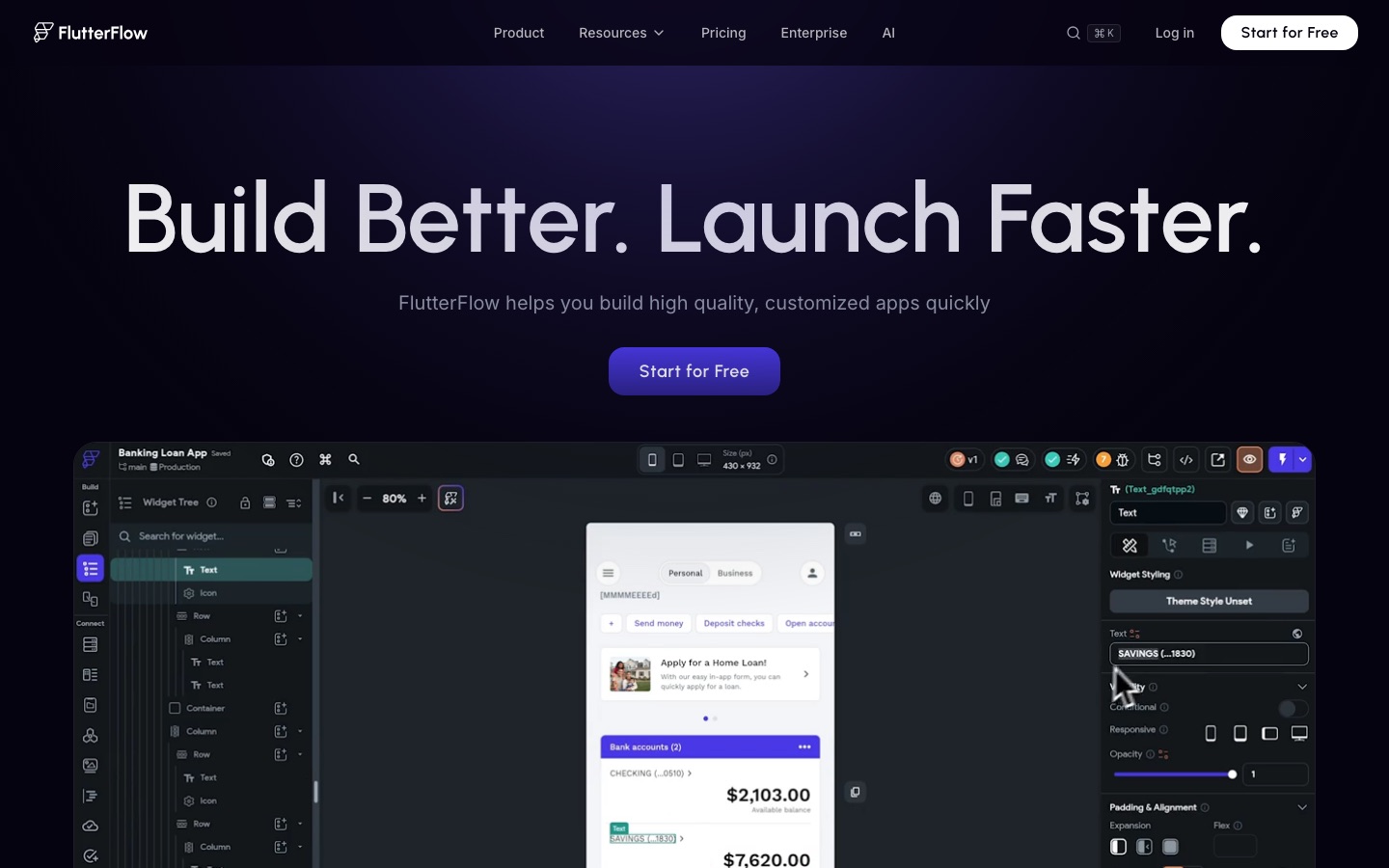
Builds a prototype from a chat description or an imported Figma file and can follow a team's own component library.
Chat-based AI builder that turns written prompts into websites, apps, prototypes and slides with hosting included.
View tool
6
Stage 6: Design to code and handoff
Approved designs are passed to development. Engineers need exact spacing, tokens, components and assets, and the built screens are compared with the design until they match.
What AI does here
Expose specs and code snippets from a design, pass selected screens to a coding agent and generate components that follow a design system.
What AI can’t do here
Produce production-quality code unreviewed. Generated front ends often ignore your architecture, accessibility markup and state handling, so an engineer must own the result.
The coding agent on the receiving end of a handoff: takes a written request or an attached requirements document, plans the tasks and makes the code changes for review.
AI coding agent and editor that plans, writes and reviews code on the desktop, in the terminal and in the cloud.
Creates individual UI components that match an existing design system and syncs the generated code to a GitHub repository.
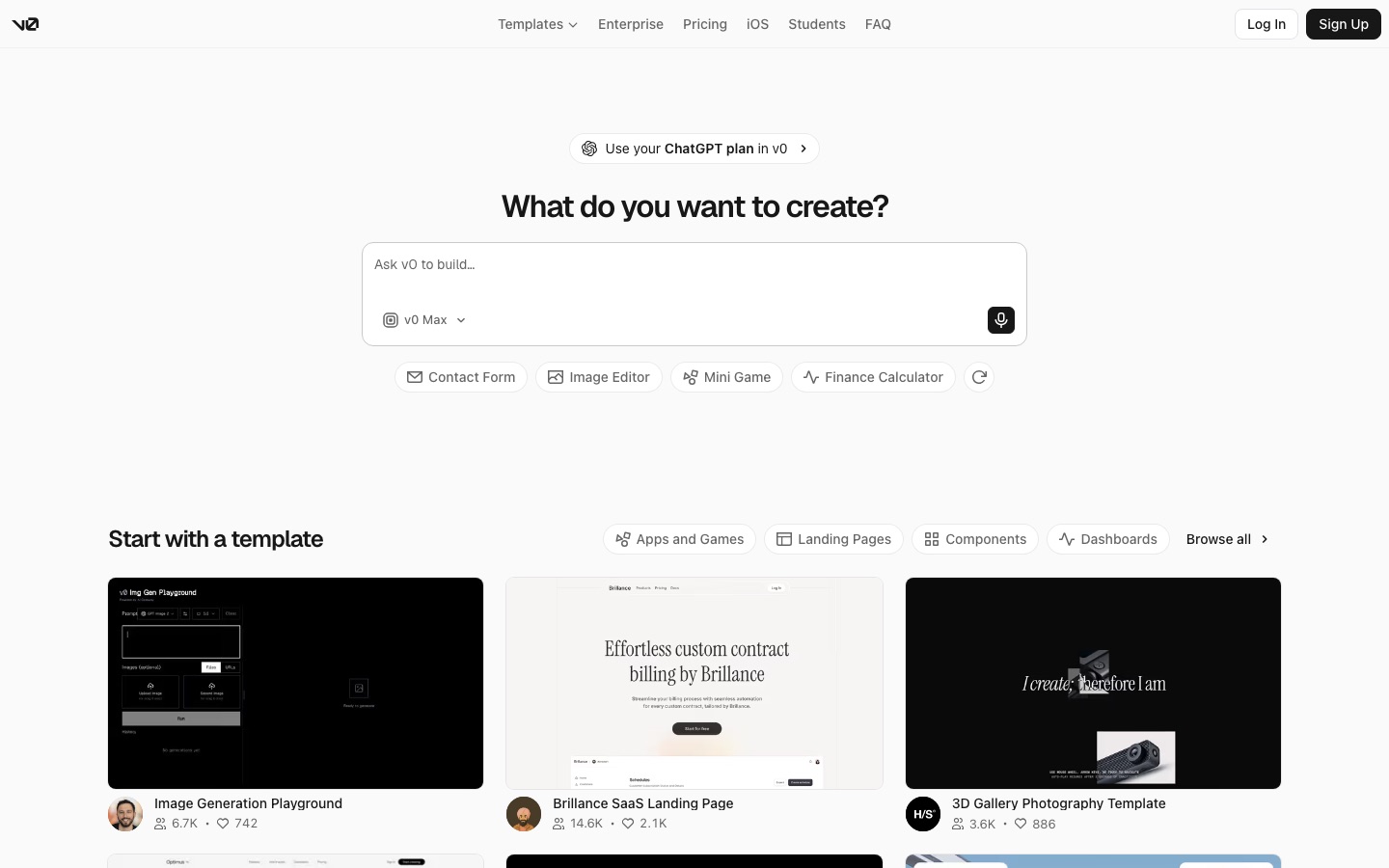
Vercel's AI app builder that turns prompts into full-stack web apps and publishes them.
From $30/moView tool
7
Stage 7: Usability testing and QA
You watch real people use the prototype or the built app, note where they fail, and check the shipped interface across devices, browsers and assistive technology before and after release.
What AI does here
Replay recorded sessions, flag visual differences between builds, scan screens for accessibility issues and run the interface on many real devices.
What AI can’t do here
Replace sitting beside a confused user. Automated accessibility scans catch only part of the problems, and five moderated sessions reveal things no dashboard shows.
Records user sessions for playback, detects signals such as dead clicks and runs A/B tests on interface changes.
Product data platform combining analytics, session replay, feature flags, error tracking and a warehouse, with AI on top.
View tool
Realistic expectations
Generated screens look alike
Design generators draw on common patterns, so results resemble many existing apps. That is helpful for familiar conventions and weak for differentiation. Bring your own brand, content and layout decisions instead of shipping the first output.
Accessibility needs human checking
Contrast, touch target size, focus order, screen reader labels and text scaling are often missed by generated designs and code. Automated scans find some issues. Legal accessibility requirements vary by country and sector, so check which apply to you and test with assistive technology.
Copying an existing interface
Tools that rebuild a design from a screenshot make it easy to clone another product's screens. Layouts and conventions are widely shared, but copying distinctive branding, artwork or a whole interface can infringe someone's rights, and where that line falls varies by country. Use references to learn, not to duplicate.
Confidential work and uploads
Uploading requirement documents, screenshots of unreleased features or interview recordings sends them to a third party. Check each tool's data handling and training policy, and get consent before recording research participants.
Generated code is a draft
Exported HTML, React or app code can be a useful starting point and still be hard to maintain. Plan for an engineer to review structure, performance, security and accessibility before any of it reaches production.
FAQs
Can AI design a whole app interface from a prompt?
It can produce a plausible set of screens from a prompt in minutes. What it produces is a first draft: common layouts, placeholder content, mostly the happy path. Turning that into a usable product still requires research, decisions about structure, the missing states and testing with users. It is most useful for exploring options quickly, not for skipping the design process.
Do I still need Figma if I use an AI UI generator?
Often yes, though not always. Several generators in this guide export editable layers to Figma, because teams refine, document and hand off there. If you are a solo founder testing an idea, a generator plus a working prototype may be enough. For a product with a team and a design system, you will want a proper design tool as the source of truth.
Should I prototype in a design tool or with an AI app builder?
It depends on the question you are testing. For navigation, layout and wording, a click-through of static screens is faster and easier to change. If the test depends on real input, data or logic, such as a search or a form with validation, a small working app from an AI builder gives more honest results. Many teams use both at different moments.
Is AI-generated front-end code good enough to ship?
Sometimes for a simple marketing page or internal tool, rarely as-is for a production app. Common gaps are accessibility markup, state management, performance and fit with your existing codebase. Treat exported code as scaffolding that a developer reviews and rewrites where needed, and test it on real devices before release.
How can I test my design with users on a small budget?
Recruit five people who resemble your target users, give each the same realistic task on your prototype, and watch without helping. Record the sessions with consent and note where they hesitate. Survey and interview tools can help recruit and transcribe, and session replay shows behavior after launch. The method matters more than the tooling.

 Notta
 v0

 MasterGo
 FlutterFlow

 QuiverAI

 Recraft

 BrowserStack

 Cursor

 Base44


